
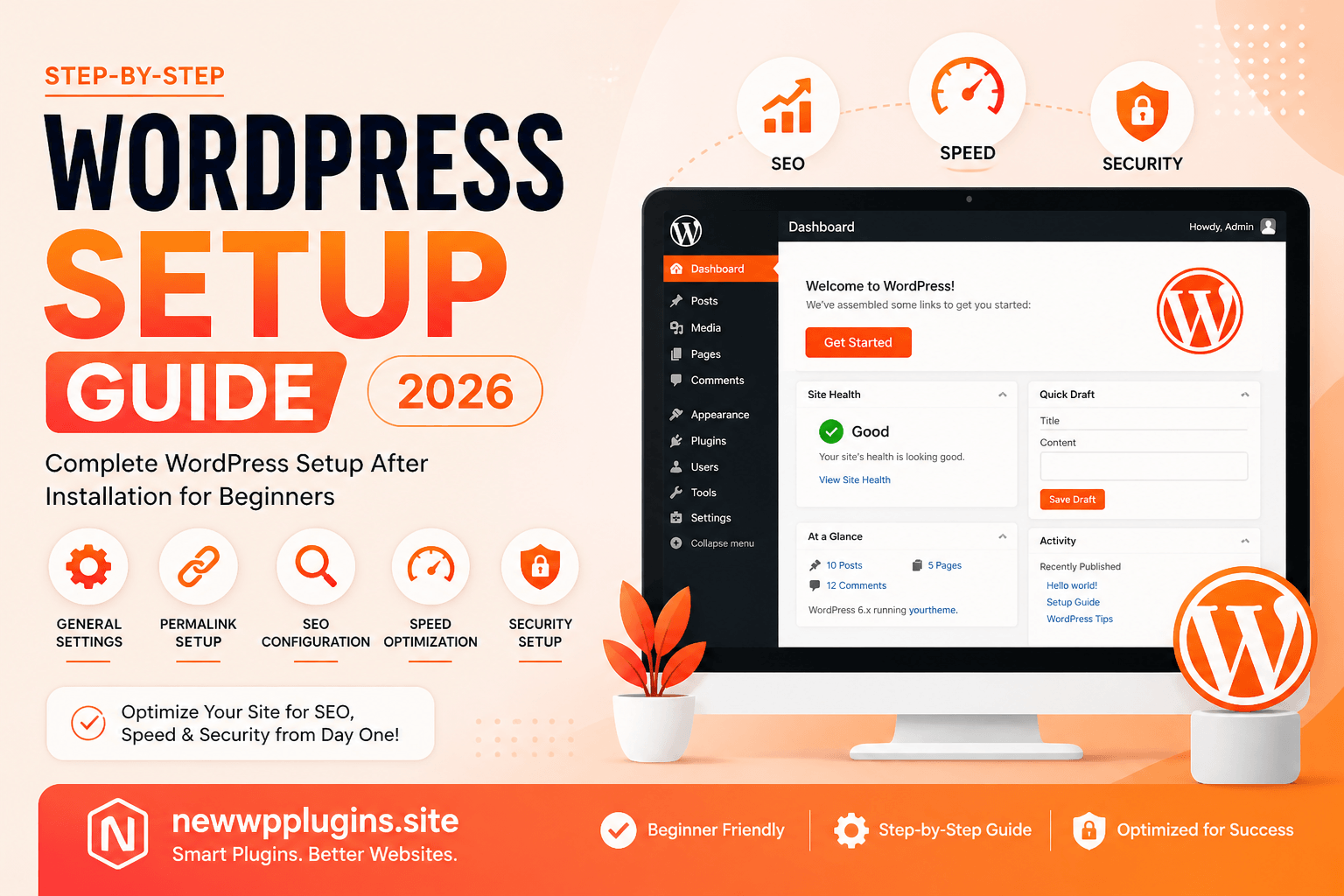
Installing WordPress is only the first step. What you do immediately after installation determines how well your website performs in terms of speed, SEO, and security.
Many beginners skip essential settings, which leads to slow websites, poor rankings, and even security risks.
In this complete guide on https://newwpplugins.site, you will learn how to properly set up WordPress after installation using a structured, step-by-step approach that ensures your website is optimized from day one.
Why Proper WordPress Setup Is Important
Before jumping into the steps, it’s important to understand why setup matters.
A properly configured WordPress site helps you:
- Rank faster on Google
- Improve website loading speed
- Avoid technical SEO issues
- Protect your website from attacks
- Create a better user experience
On the other hand, a poorly configured website often results in indexing problems, broken URLs, and slow performance.
Step 1: Configure General Settings
After logging into your dashboard, go to:
Settings → General
Here, update the basic information of your website.
Important Fields to Configure
- Site Title: Use your brand name or main keyword
- Tagline: Keep it simple and keyword-focused
- WordPress Address (URL): Should match your domain
- Timezone: Set your local timezone
- Admin Email: Use a valid email address
This step may look simple, but incorrect settings here can cause issues later.
Step 2: Set SEO-Friendly Permalinks
Permalinks define your URL structure, and this is one of the most critical SEO settings.
Go to:
Settings → Permalinks
Select:
Post Name
Your URLs should look like this:
https://newwpplugins.site/wordpress-setup-guideAvoid structures like:
?=p123Why This Matters
- Clean URLs improve readability
- Better keyword placement
- Higher chances of ranking
Once you set this, do not change it later, as it can break your URLs.
Step 3: Install Essential Plugins
Plugins are what make WordPress powerful, but choosing the right ones is important.
Instead of installing random plugins, start with essential categories.
Security Plugin
Security should be your top priority from the beginning.
A good security plugin protects your site from malware, brute-force attacks, and unauthorized access.
Read the full guide:
Top 10 Best Security Plugins for WordPress) – Complete Guide 2026
Cache Plugin (Speed Optimization)
Caching improves loading time by reducing server requests.
Recommended options are explained here:
Best Cache Plugins for WordPress (2026 Guide)
Backup Plugin
Backups ensure you can restore your site if anything goes wrong.
Explore options here:
Best WordPress Backup Plugins (2026 Guide)
Image Optimization Plugin
Images can slow down your site if not optimized.
Learn how to optimize them:
Best Image Optimization Plugins for WordPress (2026 Guide)
Step 4: Install and Configure an SEO Plugin
SEO plugins help search engines understand your website.
Popular options include SureRank, RankMath, and Yoast SEO.
Basic Setup Includes
- Setting homepage title and meta description
- Enabling sitemap
- Adding focus keywords
You can follow this guide:
On-Page SEO Checklist for WordPress (2026) Rank Faster
Step 5: Enable XML Sitemap
An XML sitemap helps search engines crawl your website more efficiently.
Your sitemap should be accessible at:
https://newwpplugins.site/sitemap_index.xml
What to Do Next
- Submit sitemap in Google Search Console
- Ensure no errors appear
A working sitemap improves indexing speed significantly.
Step 6: Connect Google Search Console and Analytics
To track performance and indexing, connect your site with:
- Google Search Console
- Google Analytics
You’ve already used Site Kit, which simplifies this process.
Benefits
- Monitor traffic
- Track keywords
- Identify errors
Step 7: Optimize Website Speed
Website speed directly affects rankings and user experience.
Start with basic optimizations:
- Enable caching
- Optimize images
- Reduce unnecessary scripts
Follow this full guide:
How to Speed Up WordPress Website 2026
Step 8: Improve Core Web Vitals
Google now uses Core Web Vitals as ranking factors.
Focus on:
- LCP (loading performance)
- CLS (layout stability)
- INP (interaction responsiveness)
Learn how to improve them:
On-Page SEO Checklist for WordPress (2026) Rank Faster
Step 9: Secure Your Website Properly
Security is not optional.
Basic steps include:
- Use strong passwords
- Limit login attempts
- Enable firewall protection
For detailed setup:
Top 10 Best Security Plugins for WordPress) – Complete Guide 2026
Step 10: Create Essential Pages
Every website should have these pages:
- Home
- About
- Contact
- Privacy Policy
These pages build trust and are important for SEO and compliance.
Step 11: Check Search Engine Visibility
Go to:
Settings → Reading
Make sure this option is unchecked:
Discourage search engines from indexing this site
If enabled, your site will not appear on Google.
Step 12: Optimize Media Settings
Go to:
Settings → Media
Adjust image sizes properly to avoid loading large images unnecessarily.
Also ensure:
- Use compressed images
- Avoid uploading oversized files
Step 13: Set Up Discussion Settings
Go to:
Settings → Discussion
Recommended setup:
- Disable spam comments
- Enable moderation
- Turn off pingbacks if not needed
This helps reduce spam and improves site quality.
Step 14: Configure Homepage and Blog Page
Go to:
Settings → Reading
Choose:
- Static homepage
- Assign blog page
This gives you better control over design and SEO.
Step 15: Start Internal Linking Strategy
Internal linking is one of the most underrated SEO techniques.
Link your posts to each other naturally.
For example:
- Link speed guide
- Link SEO checklist
- Link plugin guides
This helps search engines understand your site structure.
Common Mistakes to Avoid
Even after setup, many beginners make these mistakes:
- Installing too many plugins
- Ignoring updates
- Not optimizing images
- Skipping backups
- Not submitting sitemap
Avoiding these can save you from major issues later.
Conclusion
Setting up WordPress properly after installation is one of the most important steps in building a successful website. By following this guide, you ensure that your website is optimized for performance, SEO, and security from the very beginning.
Take your time to configure each setting correctly, and you will avoid many common problems that beginners face.