
Keeping a WordPress website updated is extremely important for security, performance, SEO, and user experience. However, during updates or redesigns, visitors may temporarily see broken layouts, incomplete pages, plugin conflicts, or website errors.
This can create confusion and reduce trust in your website or business. That is why maintenance mode exists. Maintenance mode allows you to temporarily hide your website from visitors while you safely perform updates or redesign work in the background.
In this complete beginner-friendly guide, you will learn:
- what maintenance mode is
- why it is important
- when to use it
- how to enable maintenance mode in WordPress
- how to customize maintenance pages
- SEO best practices for maintenance mode
- how to use AI Smart Maintenance Mode 2.0
This tutorial is designed for beginners and requires no coding knowledge.
What Is Maintenance Mode in WordPress?
Maintenance mode is a temporary website state where visitors see a custom maintenance page instead of your regular website content.
Instead of seeing:
- broken layouts
- incomplete pages
- temporary errors
- missing content
- redesign work
visitors see a clean message informing them that the website is temporarily unavailable and will return soon. This creates a more professional experience while allowing administrators to continue working privately.
Why Maintenance Mode Is Important
Many website owners forget that visitors can still access pages during updates.
For example:
- plugin updates may temporarily break layouts
- redesigns may expose unfinished pages
- migrations may create temporary errors
- theme changes may affect frontend styling
Without maintenance mode, visitors may think:
- the website is broken
- the business is inactive
- the website is unsafe
- the company is unprofessional
Maintenance mode helps avoid these situations.
Common Situations Where Maintenance Mode Is Useful
1. Updating Plugins
Large plugin updates can temporarily affect website functionality. Maintenance mode helps hide temporary issues while updates are in progress.
2. Theme Redesigns
If you are redesigning your WordPress website, visitors may see:
- incomplete layouts
- broken sections
- unfinished pages
Maintenance mode prevents visitors from seeing unfinished work.
3. Website Migration
During hosting migration or domain transfers, websites may behave unpredictably for a short period. Using maintenance mode keeps the process professional.
4. WooCommerce Store Maintenance
eCommerce websites especially benefit from maintenance mode because broken checkout pages or incomplete products can affect customer trust.
5. Launching a New Website
Many startups use maintenance mode as a “Coming Soon” page before launch.
This helps:
- build anticipation
- create a cleaner launch experience
- collect visitor interest
Screenshot Suggestion
Insert screenshot:
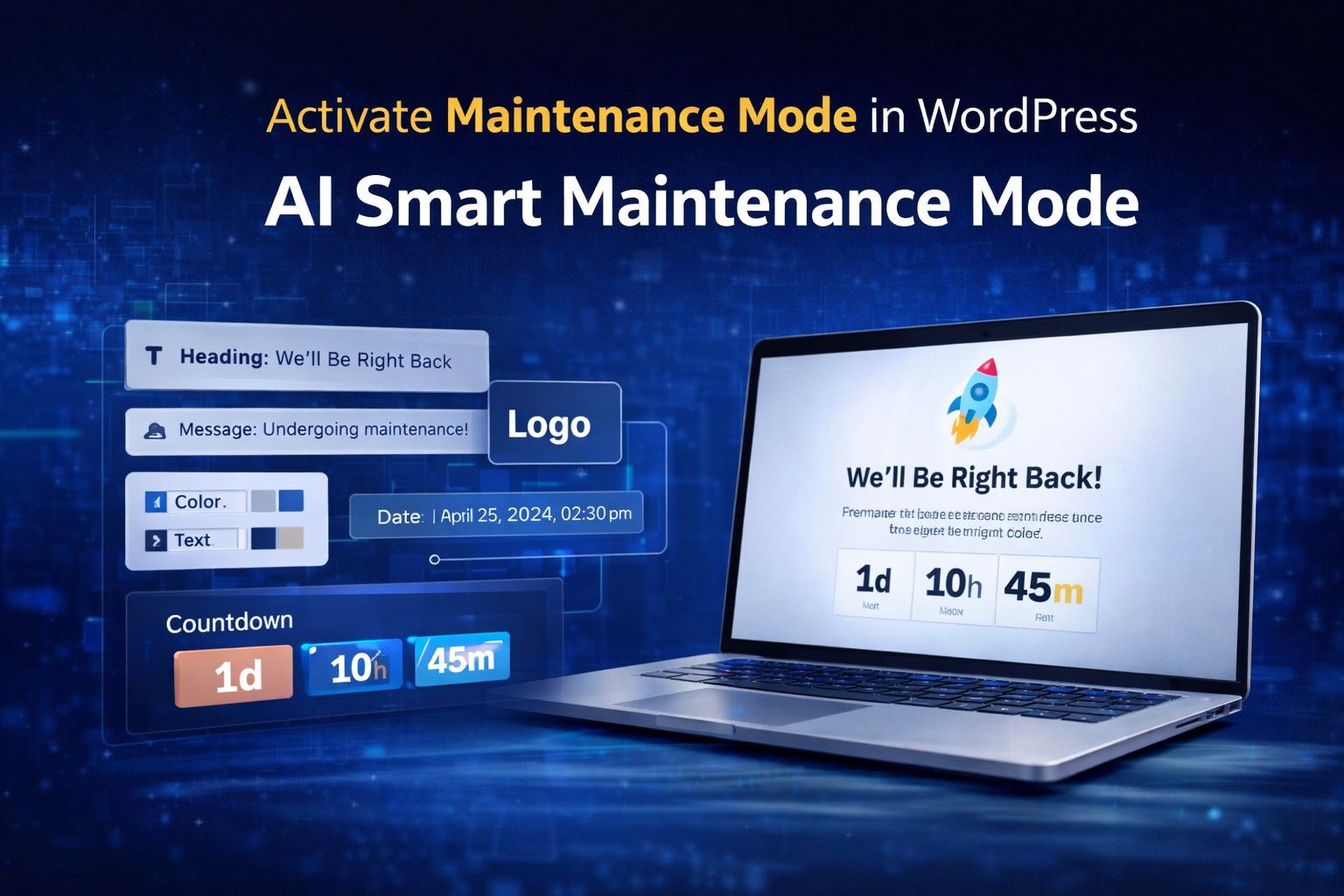
- modern maintenance page frontend
- countdown timer active
Suggested caption:
Modern WordPress maintenance mode frontend page
WordPress Default Maintenance Mode vs Plugins
WordPress already includes a very basic maintenance system during updates.
However, the default maintenance page:
- looks outdated
- cannot be customized
- may appear broken
- provides poor user experience
This is why most website owners use dedicated maintenance mode plugins instead.
A proper plugin gives you:
- better design
- customization options
- branding control
- countdown timers
- responsive layouts
- SEO-safe handling
Introducing AI Smart Maintenance Mode 2.0
AI Smart Maintenance Mode 2.0 is a lightweight WordPress plugin designed to create modern and professional maintenance pages without requiring technical knowledge.
The plugin combines:
- responsive frontend templates
- premium dashboard UI
- countdown timers
- SEO-safe maintenance mode
- beginner-friendly controls
Unlike many heavy maintenance plugins, it focuses on:
- lightweight performance
- modern frontend design
- simplicity
- shared-hosting compatibility
Key Features of AI Smart Maintenance Mode 2.0
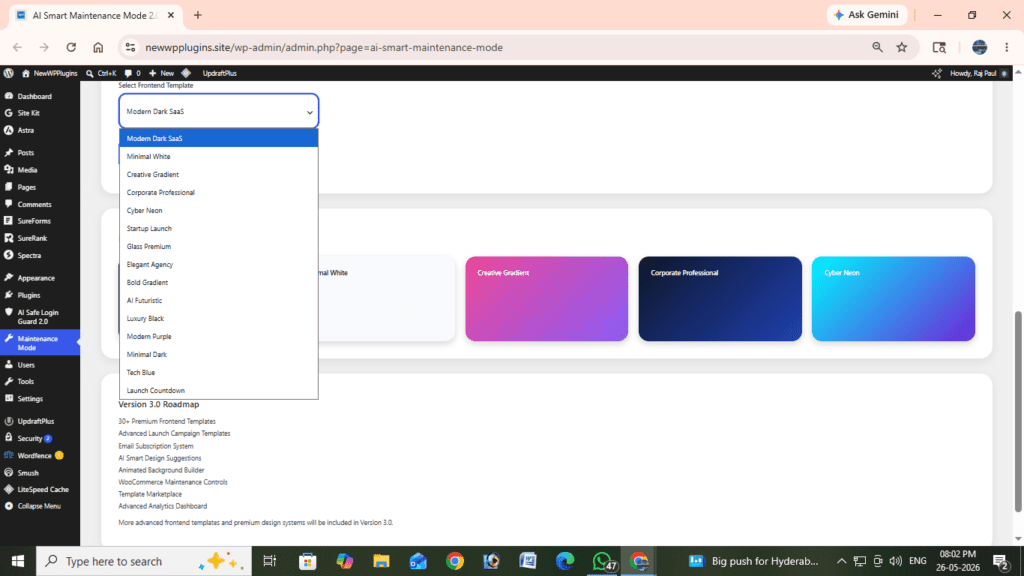
15 Modern Frontend Templates
The plugin includes multiple maintenance page templates including:
- Modern Dark SaaS
- Creative Gradient
- Corporate Professional
- Minimal White
- Cyber Neon
- Launch Countdown
Users can switch templates instantly from the dashboard.
Responsive Frontend Design
All templates are mobile responsive and optimized for:
- phones
- tablets
- desktop devices
Countdown Timer
You can display a live countdown showing visitors when the website will return.
Perfect for:
- product launches
- redesigns
- startup launches
- upcoming announcements
SEO-Safe Maintenance Mode
The plugin uses proper HTTP 503 maintenance headers to help protect SEO rankings during maintenance periods.
Admin Bypass System
Administrators automatically bypass maintenance mode so they can continue working normally.
IP Whitelist Feature
Trusted developers or testers can bypass maintenance mode using whitelist settings.
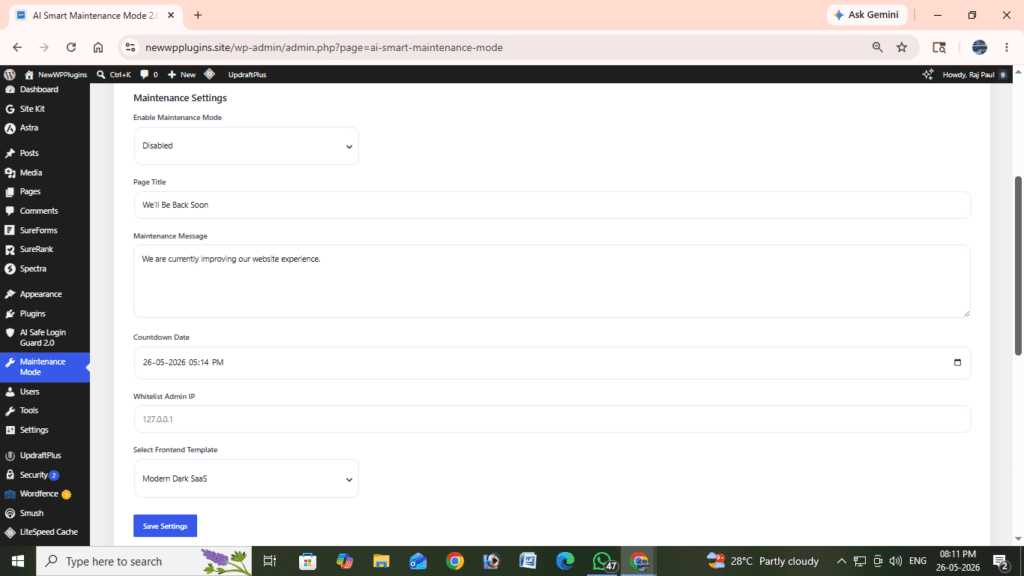
AI Smart Maintenance Mode 2.0 dashboard inside WordPress
How to Install AI Smart Maintenance Mode 2.0
Installing the plugin is very simple.
Step 1 — Download the Plugin
Download the plugin ZIP file from: AI Smart Maintenance Mode Plugin V 2.0
Step 2 — Open WordPress Plugins Page
Inside WordPress dashboard, go to:
Plugins → Add New
Step 3 — Upload Plugin
Click:
Upload Plugin
Then select the ZIP file.
Step 4 — Install and Activate
Click:
Install Now, and then Active the plugin
The plugin dashboard will now appear inside WordPress admin.
How to Enable Maintenance Mode
After activation:
Open:
Maintenance Mode
inside WordPress dashboard.
Then follow these steps:
Step 1 — Enable Maintenance Mode
Use the enable toggle to activate maintenance mode.
Step 2 — Customize Page Title
Example:
We’ll Be Back Soon
Step 3 — Add Maintenance Message
Example:
We are currently improving our website experience and will return shortly.
Step 4 — Select Frontend Template
Choose one of the included templates. Different templates fit different website styles.
For example:
- startups → Modern Dark SaaS
- agencies → Minimal White
- gaming websites → Cyber Neon
Step 5 — Configure Countdown Timer
Select:
- launch date
- launch time
The timer updates automatically on frontend.
Step 6 — Save Settings
Once saved, maintenance mode becomes active instantly.
What Visitors Will See
Instead of seeing broken pages, visitors will see:
- professional maintenance message
- countdown timer
- responsive design
- modern frontend layout
This creates a much better user experience during updates.
Screenshot Suggestion
Insert screenshot:
- live frontend maintenance page
- countdown section
Suggested caption:
Frontend maintenance page shown to website visitors
Does Maintenance Mode Affect SEO?
This is one of the most common questions.
The short answer:
No — if used correctly.
In fact, maintenance mode is often safer than exposing:
- broken layouts
- incomplete pages
- temporary website errors
However, it is important to use proper maintenance handling. AI Smart Maintenance Mode 2.0 uses HTTP 503 maintenance headers which help search engines understand that the downtime is temporary.
Benefits:
- safer indexing behavior
- reduced crawl confusion
- protects rankings
- SEO-friendly maintenance handling
Best Practices for Maintenance Mode
Keep Maintenance Periods Short
Avoid leaving maintenance mode enabled for long periods.
Short maintenance windows are better for:
- SEO
- user experience
- website trust
Use Friendly Messages
Instead of generic error text, use friendly and professional messaging.
Example:
We are currently improving our website experience and will return shortly.
Avoid Frequent Maintenance
Too many maintenance periods may frustrate visitors. Only enable maintenance mode when necessary.
Test Before Disabling
Before turning maintenance mode off:
- test pages
- check mobile layout
- verify plugins
- test forms
- confirm performance
Maintenance Mode for WooCommerce Stores
WooCommerce websites especially benefit from professional maintenance pages. Without maintenance mode, customers may encounter:
- checkout errors
- incomplete products
- payment issues
- broken layouts
Maintenance mode helps avoid negative customer experiences during updates.
Internal Linking Suggestions
- WordPress plugin installation guides
- WordPress login security tutorials
- WordPress optimization articles
- website launch tutorials
- WooCommerce guides
Suggested internal links:
- “How to Install WordPress Plugins”
- “How to Protect WordPress Login from Brute Force Attacks”
- “Best WordPress Security Plugins”
Helpful Related Resources
You may also find these tutorials useful:
Frequently Asked Questions
Will administrators be blocked?
No. Logged-in administrators automatically bypass maintenance mode.
Can I customize the maintenance page?
Yes. You can customize:
- title
- maintenance message
- template
- countdown timer
- whitelist settings
directly from the dashboard.
Is coding knowledge required?
No. Everything works from the WordPress admin dashboard.
Can I use maintenance mode during redesigns?
Yes. Maintenance mode is ideal for redesign projects and frontend changes.
Does maintenance mode affect SEO rankings?
Short-term maintenance mode with proper 503 headers is generally safe for SEO.
Version 3.0 Roadmap
Future updates planned for Version 3.0 include:
- 30+ frontend templates
- advanced analytics dashboard
- AI smart design suggestions
- WooCommerce maintenance controls
- template marketplace
- animated backgrounds
- launch campaign templates
- email subscription system
The goal is to evolve AI Smart Maintenance Mode into a complete website launch and maintenance platform.
Final Thoughts
Maintenance mode is one of the simplest ways to manage WordPress updates professionally. Instead of exposing visitors to:
- broken layouts
- incomplete pages
- temporary issues
you can display a modern and professional maintenance experience. AI Smart Maintenance Mode 2.0 combines into a practical solution for WordPress website owners. AI Smart Maintenance Mode 2.0 provides a professional way to temporarily hide your website while keeping your workflow uninterrupted.