
If you have spent weeks, months, or even years building your WordPress website, there is one question you should ask yourself right now: what would happen if your website suddenly disappeared tomorrow?
Many website owners focus heavily on SEO, content creation, website speed, and security while completely overlooking one critical area—backups. Unfortunately, most people only realize the importance of backups after something goes wrong. A failed update, a hacked website, a server crash, accidental file deletion, or even a simple user mistake can instantly wipe out years of hard work.
This is why backups are often referred to as your website’s insurance policy. You may not think about them every day, but when disaster strikes, a good backup can save you from losing everything.
In 2026, WordPress websites are more complex than ever. Modern sites rely on plugins, themes, page builders, custom code, databases, media libraries, eCommerce systems, and user-generated content. Losing any part of that data can be devastating, especially for business websites and online stores.
The good news is that WordPress backup plugins make it incredibly easy to protect your website. Most modern backup solutions allow you to automate backups, store copies securely in cloud storage, and restore your website within minutes if something goes wrong.
In this guide, you’ll learn why backups matter, what features to look for, common backup mistakes to avoid, and the best WordPress backup plugins available in 2026.
Why Backups Matter More Than Ever
Many website owners assume their hosting provider handles backups automatically. While some hosts do provide backup services, relying entirely on your hosting company is rarely a good idea. Hosting backups may be limited, stored on the same server, or unavailable exactly when you need them.
A proper backup strategy gives you complete control over your website recovery process.
Imagine these scenarios:
- A plugin update breaks your website.
- Your hosting account becomes corrupted.
- Malware infects your files.
- You accidentally delete important content.
- A server migration goes wrong.
- A developer makes a mistake.
Without a backup, recovery may be impossible. With a backup, restoration often takes only a few minutes. This simple difference can save hundreds of hours of work and potentially thousands of dollars in lost revenue.
What Should a Good Backup Plugin Include?
Not all backup plugins are created equally. Some focus only on file backups, while others provide complete website recovery systems.
A good WordPress backup plugin should ideally provide:
- Automatic scheduled backups
- Full website backups
- Database backups
- Cloud storage integration
- Easy restore process
- Migration support
- Reliable performance
- Beginner-friendly interface
The best solutions automate the entire process so you never have to remember to create backups manually.
UpdraftPlus – The Most Popular Choice
One of the most widely used WordPress backup plugins today is UpdraftPlus. It has earned its reputation because it combines powerful features with a simple interface that beginners can understand.
UpdraftPlus allows you to:
- Schedule automatic backups
- Store backups remotely
- Restore directly from WordPress
- Backup files and databases separately
- Migrate websites
Cloud storage integrations include:
- Google Drive
- Dropbox
- OneDrive
- Amazon S3
For many WordPress users, UpdraftPlus provides everything needed for a reliable backup strategy.
Duplicator – Excellent for Migrations and Backups
Another popular option is Duplicator. Although Duplicator is often known for website migrations, it also serves as an excellent backup solution. Its biggest strength is creating portable website packages that can be moved easily between servers.
This makes it ideal for:
- Website migrations
- Development environments
- Website cloning
- Backup recovery
If you regularly move websites between hosting providers, Duplicator is worth considering.
Jetpack VaultPress Backup
For users seeking real-time backups, Jetpack VaultPress Backup offers a premium cloud-based approach. Unlike traditional scheduled backups, VaultPress can create backups continuously as changes occur.
This is particularly useful for:
- WooCommerce stores
- Membership websites
- High-traffic websites
Because changes are backed up immediately, the risk of losing recent content becomes significantly lower.
BlogVault
BlogVault is another highly respected backup solution that focuses heavily on reliability and security. One major advantage of BlogVault is that backups are stored independently from your website server. This reduces server load and improves recovery reliability.
BlogVault also offers:
- Website migration tools
- Staging environments
- Malware scanning
- Incremental backups
Many agencies and professional developers prefer BlogVault because of its advanced management features.
Solid Backups (Formerly BackupBuddy)
Previously known as BackupBuddy, Solid Backups remains a popular backup solution for WordPress websites.
It provides:
- Scheduled backups
- Cloud storage integrations
- Migration features
- Easy restoration tools
Although it is a premium plugin, many businesses appreciate the additional support and reliability.
Choosing the Right Backup Plugin
The best backup plugin depends on your website type and budget. For beginners, UpdraftPlus is often the easiest recommendation because it balances functionality and simplicity.
For migrations and cloning, Duplicator performs exceptionally well. For real-time protection, VaultPress offers continuous backup capabilities. For agencies and professionals, BlogVault provides advanced management tools.
The most important thing is not necessarily which plugin you choose, but whether you consistently maintain backups at all.
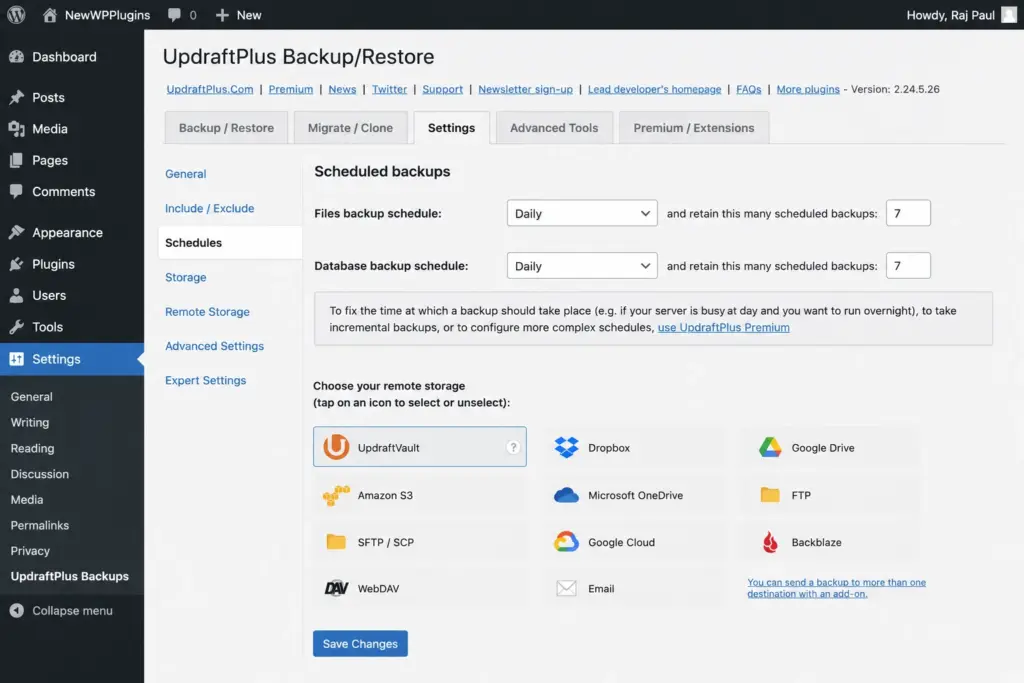
WordPress automatic backup scheduling using UpdraftPlus
Cloud Storage Is Extremely Important
One of the biggest backup mistakes people make is storing backups only on the same server as their website. This creates a dangerous situation. If the server fails, both the website and backups may disappear simultaneously.
Always store backup copies remotely. Popular cloud storage options include:
- Google Drive
- Dropbox
- OneDrive
- Amazon S3
Cloud storage dramatically improves backup reliability because your copies remain available even if your hosting account becomes inaccessible.
Common Backup Mistakes to Avoid
Many website owners install a backup plugin and assume their website is fully protected. Unfortunately, backups only work when managed correctly.
Several common mistakes can leave websites vulnerable.
One of the biggest mistakes is not scheduling backups at all. Manual backups are easy to forget, especially during busy periods. Another common problem is storing backups only on the server. As discussed earlier, this defeats the purpose of having backups in the first place. Many users also forget to test restoration procedures. A backup that cannot be restored successfully is essentially useless.
Database backups are another area frequently ignored. While website files are important, your database contains posts, pages, settings, comments, and user information. Losing database data can be just as damaging as losing website files.
Why Testing Restores Matters
Creating backups is only half the process. You should occasionally test the restoration process to verify everything works correctly. Many website owners discover problems only when they desperately need a backup.
Testing ensures:
- Backup files are complete
- Restore procedures work properly
- Recovery times are acceptable
- Cloud integrations function correctly
Think of it as practicing an emergency plan before an actual emergency occurs.
Pro Tips for Better WordPress Backup Protection
Professional website owners often follow a few simple rules that significantly improve backup reliability. First, always maintain off-site backup copies. Cloud storage remains one of the safest options available.
Second, schedule backups automatically instead of relying on manual processes. Third, perform backups before major updates, migrations, or redesign projects. Fourth, keep multiple backup versions whenever possible rather than relying on a single recovery point.
Finally, test restoration periodically so you know your backups actually work. These habits dramatically reduce risk and improve long-term website stability.
RELATED RESOURCES
Top 10 Best Security Plugins for WordPress) – Complete Guide 2026
Best Cache Plugins for WordPress (2026 Guide)
Best Image Optimization Plugins for WordPress (2026 Guide)
Technical SEO for WordPress (2026 Guide)
How to Protect WordPress Login from Brute Force Attacks (Complete Guide)
Backups, Security, and Website Maintenance
Backups work best when combined with proper website security and maintenance practices. For example, backups complement security plugins because they provide a recovery option if a website becomes compromised.
You may also find these guides useful:
- How to Protect WordPress Login from Brute Force Attacks
- Top 10 Best Security Plugins for WordPress (2026)
- How to Enable Maintenance Mode in WordPress
- LiteSpeed Cache Settings for WordPress (Fast Speed Guide)
Together, these strategies help create a safer and more reliable WordPress environment.
Creating a Backup Strategy for 2026
The most effective backup strategy usually combines:
- Automatic scheduling
- Cloud storage
- Weekly full backups
- Daily database backups
- Periodic restore testing
Smaller websites may only require weekly backups, while active WooCommerce stores often benefit from daily or even real-time backups.
The key is matching your backup frequency to how often your content changes.
Final Thoughts
A backup plugin is one of the most important tools you can install on a WordPress website. While backups may not seem exciting compared to SEO, performance optimization, or security improvements, they provide something those tools cannot—peace of mind. Without backups, a single mistake can erase years of work. With backups, recovery becomes manageable and far less stressful.
Whether you choose UpdraftPlus, Duplicator, VaultPress, BlogVault, or another reputable solution, the most important step is creating a backup system and using it consistently. Schedule automatic backups, store them safely in cloud storage, test restores occasionally, and treat backups as an essential part of website management.
Your future self will thank you the day something goes wrong.