
How to install a wordpress plugin, WordPress plugins are one of the biggest reasons WordPress powers millions of websites worldwide. Plugins allow you to add new features, improve performance, strengthen security, and customize your website—without writing code.
If you are new to WordPress, installing plugins may feel confusing at first. This beginner-friendly guide explains all safe and official ways to install WordPress plugins, step by step, using simple language.
By the end of this tutorial, you will understand:
- What WordPress plugins are.
- When you should install a plugin.
- All safe methods to install plugins.
- Common mistakes beginners should avoid.
What Is a WordPress Plugin?
A WordPress plugin is a software add-on that extends the functionality of your website. Plugins can help you:
- Secure your login page.
- Reduce spam comments.
- Improve website speed.
- Add SEO features.
- Enable maintenance mode.
Plugins work alongside your theme and core WordPress files and can be activated or removed at any time.
When Should You Install a Plugin?
You should install a plugin when your website needs a feature that WordPress does not provide by default.
Examples include:
- Protecting your website from brute-force login attacks.
- Improving page loading speed.
- Enhancing internal linking for SEO.
- Managing comments and spam.
⚠️ Avoid installing unnecessary plugins, as too many plugins can slow down your site.
Method 1: Install a Plugin from the WordPress Plugin Directory (Recommended)
This is the easiest and safest method, especially for beginners.

✅ Step-by-Step Instructions
- Log in to your WordPress dashboard.
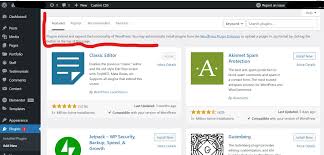
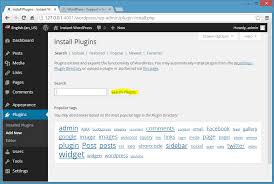
- Go to Plugins → Add New.
- Search for the plugin you want.
- Click Install Now.
- After installation, click Activate.
Once activated, the plugin starts working immediately.
✅ Why This Method Is Best
- Plugins are reviewed by WordPress.org
- Automatic updates are available.
- Easy to uninstall if needed.
This method is ideal for free plugins available in the official plugin directory.
Method 2: Upload a Plugin ZIP File (Manual Upload)
Sometimes you may download a plugin as a ZIP file from a trusted website.
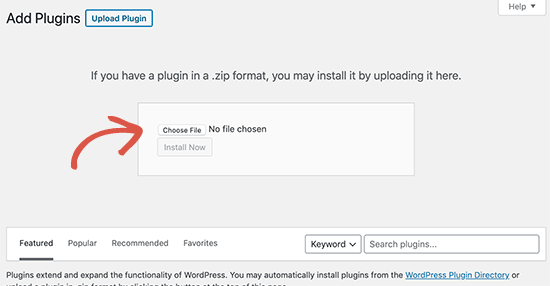
✅ Step-by-Step Instructions
- Download the plugin ZIP file.
- Go to Plugins → Add New.
- Click Upload Plugin.
- Choose the ZIP file.
- Click Install Now.
- Activate the plugin.
✅ When to Use This Method
- Installing custom plugins.
- Installing plugins not listed in the WordPress directory.
⚠️ Only upload plugins from trusted developers to avoid security risks.
Method 3: Install a Plugin Using FTP (Advanced)
This method is useful when dashboard uploads fail.

✅ What You Need
- FTP access from your hosting provider.
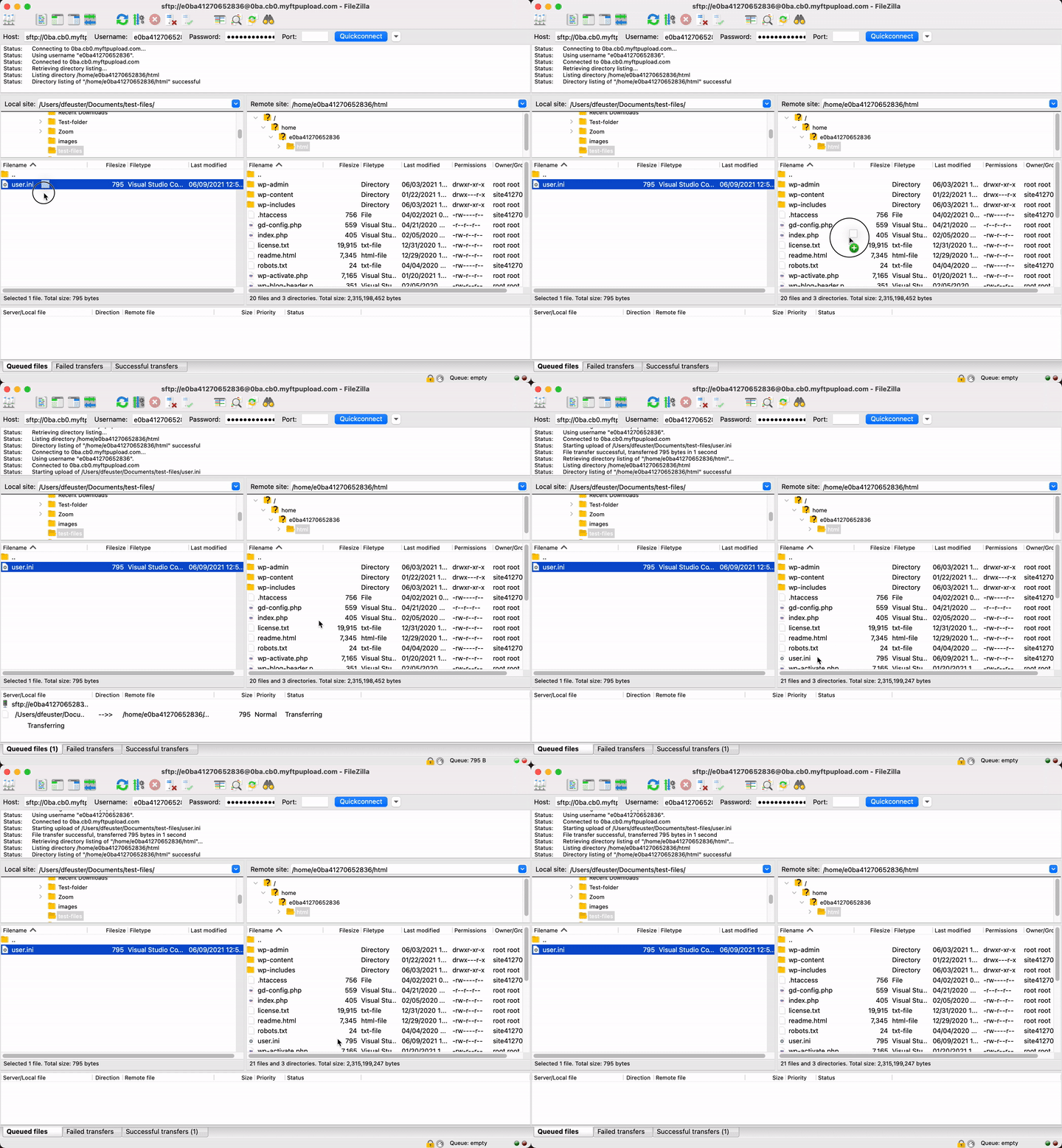
- An FTP client (such as FileZilla).
✅ Step-by-Step Instructions
- Extract the plugin ZIP file on your computer.
- Connect to your website via FTP.
- Navigate to /wp-content/plugins/
- Upload the plugin folder.
- Log in to WordPress.
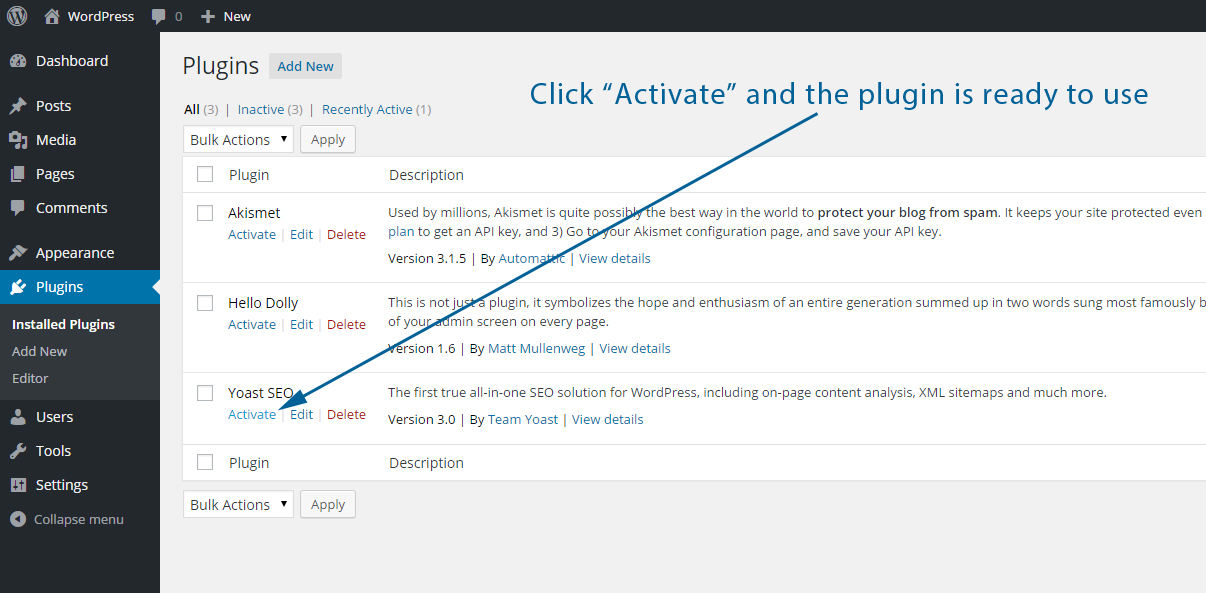
- Go to Plugins → Installed Plugins.
- Activate the plugin.
This method gives full control but requires technical knowledge.
How to Activate and Configure a Plugin
Installing a plugin is only the first step. Many plugins include settings that need configuration.
After activation:
- Look for a new menu item in the dashboard.
- Or check Settings for plugin options.
- Review the plugin documentation.
Proper configuration ensures the plugin works as expected.
How to Safely Test a Plugin
Before using a plugin on a live website:
- Test on a staging site if possible.
- Check website speed and layout.
- Confirm compatibility with your theme.
Security and performance plugins should always be tested carefully.
Common Mistakes Beginners Make
Avoid these common plugin mistakes:
- Installing too many plugins.
- Using outdated or abandoned plugins.
- Ignoring plugin reviews and ratings.
- Installing plugins from untrusted sources.
- Forgetting to update plugins.
Keeping plugins updated is essential for security and stability.
How to Uninstall a Plugin Properly
If a plugin is no longer needed:
- Go to Plugins → Installed Plugins.
- Click Deactivate.
- Click Delete.
Never delete plugins directly from files without deactivating them first.
Recommended resources
How to Set Up WordPress Properly After Installation
How to Submit Your WordPress Website to Googl
Best Image Optimization Plugins for WordPress (2026 Guide)
Best WordPress Backup Plugins (2026 Guide)
Best Cache Plugins for WordPress (2026 Guide)
Best Practices for Using WordPress Plugins
• Install only necessary plugins
• Keep plugins updated
• Remove unused plugins
• Avoid feature overlap
• Choose lightweight plugins
These practices help keep your website fast and secure.
How Plugins Fit into a Secure WordPress Website
Plugins play a major role in:
- Website security.
- Performance optimization.
- SEO improvements.
Choosing well-built plugins with manual control ensures long-term website health.
Final Thoughts
Installing WordPress plugins is simple once you understand the correct methods. Whether you install plugins from the WordPress directory, upload ZIP files, or use FTP, always focus on safety and quality.
With the right plugins and right setup, best hosting and best practices, you can build a faster, safer, and more powerful WordPress website.