
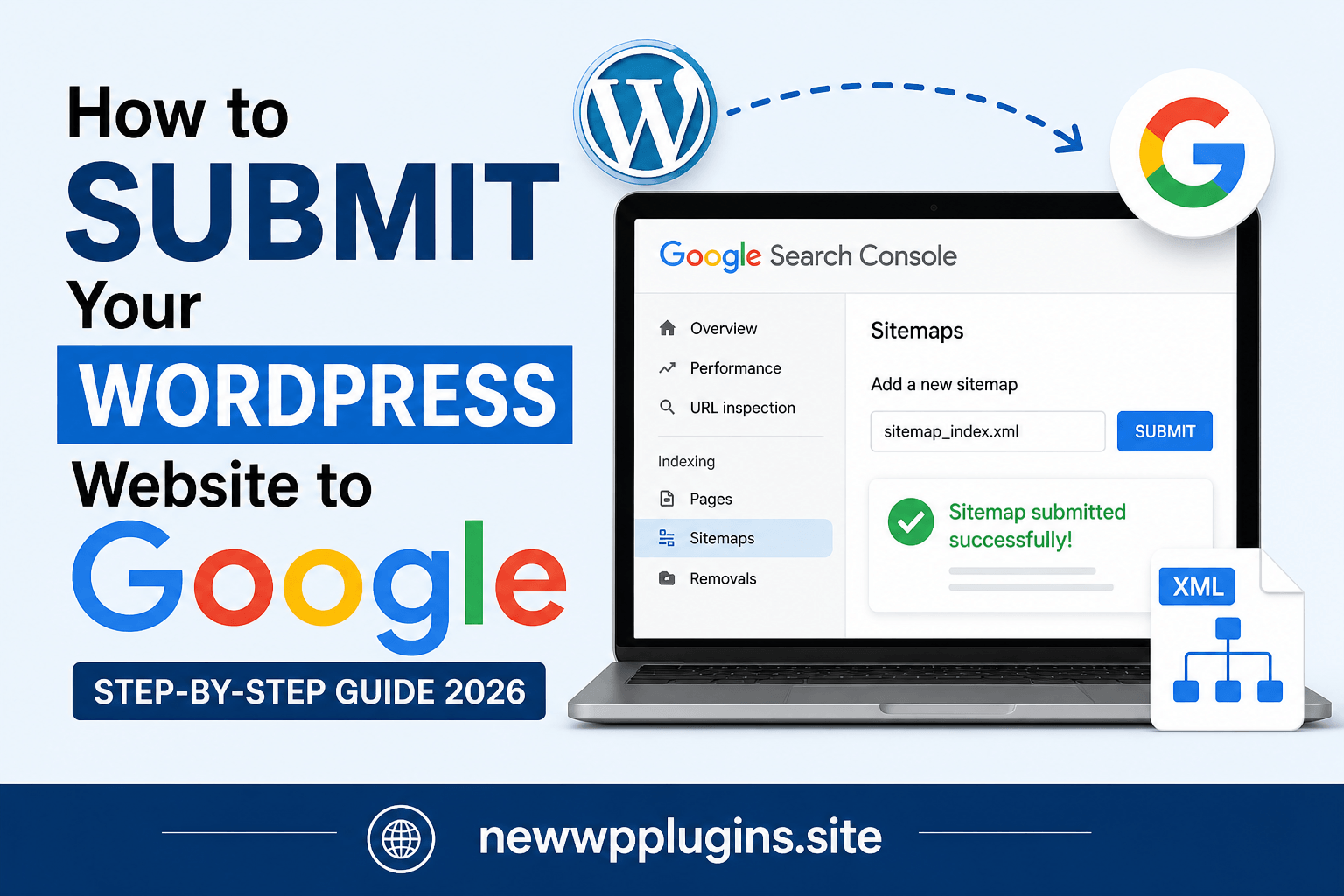
In this 2026 guide, you’ll learn exactly how to submit your WordPress website to Google, get your pages indexed faster, and avoid the most common indexing mistakes that prevent websites from ranking.
A lot of beginners believe that once a website is live, Google will automatically show it in search results. In reality, Google needs to discover, crawl, process, and index your pages before they can appear. Without proper setup, this process can take weeks or fail entirely.
If your goal is to grow traffic on your site like https://newwpplugins.site, then understanding indexing is not optional — it is foundational.
Understanding How Google Finds and Indexes Your Website
Before jumping into steps, it’s important to understand what actually happens behind the scenes.
Google works in three main stages:
1. Crawling
Googlebot visits your website and scans your pages.
2. Indexing
Google analyzes the content and decides whether to store it in its database.
3. Ranking
Indexed pages compete to appear in search results.
If your site fails at any stage, it won’t rank — no matter how good your content is.
Step 1: Set Up Google Search Console Correctly
Google Search Console is your main control panel for indexing.
To start:
- Go to Google Search Console
- Click “Start Now”
- Sign in with your Google account
Choose the Right Property Type
You’ll see two options:
Domain Property (Recommended)
Tracks everything:
- http and https
- www and non-www
- subdomains
URL Prefix
Tracks only one version
For long-term SEO, always choose Domain Property.
Step 2: Verify Website Ownership (Important Step)
Google requires verification to ensure you own the website.
Best Method: DNS Verification
- Go to your domain provider
- Add the TXT record provided by Google
- Wait for verification
Alternative: Google Site Kit (Easiest)
Since you’re already using Site Kit, your site is likely verified automatically.
This method is preferred for WordPress users because it reduces configuration errors.
Step 3: Submit Your Sitemap (Critical Step)
A sitemap tells Google what pages exist on your website and helps it crawl efficiently.
Your Correct Sitemap
Use only:
👉 https://newwpplugins.site/sitemap_index.xml
Avoid using multiple sitemap versions like:
- /sitemap.xml
- /wp-sitemap.xml (if conflicting)
How to Submit Sitemap
- Open Search Console
- Go to “Sitemaps”
- Enter:
sitemap_index.xml- Click Submit
What Happens After Submission
Google will:
- Start crawling your site
- Discover pages
- Add them to indexing queue
This is the foundation of your SEO visibility.
Step 4: Use URL Inspection Tool for Faster Indexing
Even after submitting a sitemap, indexing can take time.
To speed it up:
- Copy your page URL
- Paste it into Search Console
- Click “Request Indexing”
When to Use It
- New blog posts
- Updated articles
- Important pages
This is one of the fastest ways to trigger indexing manually.
Step 5: Understand Indexing Status (Very Important)
Go to:
Search Console → Pages
Here you’ll see different statuses:
- Indexed
- Crawled – not indexed
- Discovered – not indexed
What These Mean
Indexed
Page is live in Google
Crawled – Not Indexed
Google saw the page but didn’t think it’s valuable enough
Discovered – Not Indexed
Google knows the page exists but hasn’t crawled it yet
Understanding this is key to fixing SEO issues.
Step 6: Fix “Crawled but Not Indexed” Issues
This is one of the most common problems.
Reasons
- Thin content
- Duplicate content
- Weak internal linking
- Low authority
How to Fix
- Improve content quality
- Add internal links
- Update content regularly
- Make it more useful
Step 7: Ensure Your Pages Are Indexable
Google cannot index pages if they are blocked.
Check These
- No “noindex” tag
- Not blocked in robots.txt
- Proper canonical tags
Step 8: Optimize Robots.txt File
Your robots file controls what Google can crawl.
Use this structure:
User-agent: *
Disallow: /wp-admin/
Allow: /wp-admin/admin-ajax.php
Sitemap: https://newwpplugins.site/sitemap_index.xml
Why This Matters
- Prevents unnecessary crawling
- Improves crawl efficiency
- Helps prioritize important pages
Step 9: Improve Internal Linking Structure
Google discovers content through links.
If your pages are not linked, they may not be indexed.
What You Should Do
Link your posts like:
- Technical SEO guide
- WordPress setup guide
- SEO checklist
Example:
Technical SEO for WordPress (2026 Guide)
Why Internal Linking Matters
- Helps Google crawl deeper
- Distributes SEO authority
- Improves indexing speed
Step 10: Improve Website Speed (Important for Crawling)
Slow websites reduce crawl efficiency.
Optimize your site:
- Use caching
- Optimize images
- Reduce scripts
Follow this guide:
How to Speed Up WordPress Website 2026
Step 11: Optimize Core Web Vitals
Core Web Vitals are now ranking factors.
Focus on:
- LCP
- CLS
- INP
Learn here:
Core Web Vitals for WordPress – Improve LCP, CLS & INP
Step 12: Publish High-Quality Content Consistently
Google indexes valuable content faster.
Focus on:
- Tutorials
- Problem-solving guides
- Detailed articles
Avoid:
- Thin content
- Duplicate posts
Step 13: Avoid Duplicate Content Issues
Duplicate content confuses search engines.
Fix It By
- Using canonical tags
- Avoiding multiple URLs for same content
Step 14: Monitor Performance Regularly
In Search Console:
Check:
- Clicks
- Impressions
- Keywords
This helps you understand what’s working.
Common Mistakes to Avoid
- Submitting wrong sitemap
- Blocking search engines
- Ignoring indexing errors
- Publishing low-quality content
- Not using internal links
Conclusion
Submitting your WordPress website to Google is just the beginning.
The real goal is to:
- Ensure proper indexing
- Improve crawl efficiency
- Build strong content structure
If your setup is correct and your content is valuable, Google will start recognizing your site over time.
For more tutorials, visit: https://newwpplugins.site